Producing accessible PDFs with LaTeX
PDFs generated by LaTeX are not considered accessible by default because they lack semantic metadata needed for full screen reader support.
You may have observed this issue if you have fed a LaTeX-produced PDF into YuJa Panorama:
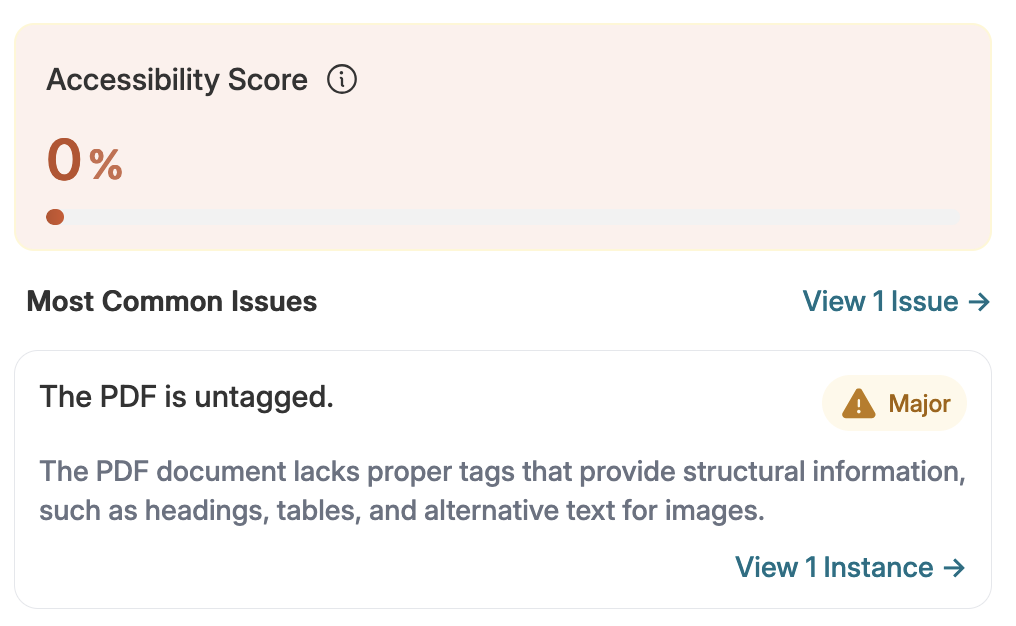
To fix this issue, the following are required to generate a new, accessible version of the PDF:
- the LaTeX source for the document, which must be edited according to the guidelines on this page
- a recent version of TeX Live (2026 or newer)
and the following are recommended:
- using LuaTeX as the PDF generation backend
Step 1: add \DocumentMetadata to your main .tex file
The following snippet must be inserted at the very beginning of your main .tex file:
\DocumentMetadata{
 lang=en,
 pdfversion=2.0,
 pdfstandard=ua-2,
 tagging=on,
 tagging-setup={math/setup=mathml-SE}
}- This command must come before all other commands in your document's preamble, even
\documentclass. - It is not currently possible to move this command inside of a package or class file.
- Be sure to change the language specified if necessary.
- You can specify multiple PDF standards, but this is only necessary in the rare case that you are embedding other files within your PDF (as opposed to including images in the running text).
- MathML-SE is the MathML Namespace Structure Element tagging method. This means that the PDF will contain information on what the mathematical expressions mean rather than just what they look like. For example, the letter "x" to the power of two is stored in the PDF as an exponentiation operation rather than just a typographic superscript. This makes it easier for screen reader users to understand the mathematical expressions being used.
Step 2: add alternative text to all images
Each instance of \includegraphics, \tikz, the picture environment, and the tikzpicture environment can accept one of the following keys:
alt(string) can supply a short amount of alternative text. For longer descriptions, it is recommended to use a figure instead with the text incorporated into the body of the document.actualtext(string) can be used to indicate that the image itself represents certain text verbatim. For example, one might useactualtext=Aif the image represents the letter "A".artifact(boolean) can be used to mark the image as decorative. This is similar to supplying an explicitalt=""in HTML.
More information can be found in the latex-lab-graphic documentation.
Step 3: annotate tables
Every table needs to have its headers identified. You can do this by introducing the following command immediately before your table, supplying the (one-indexed, comma separated) list of row numbers within the inner braces.
\tagpdfsetup{table/header-rows={...}}You can also use the table/header-columns key.
The command takes effect for the next table and all subsequent tables. Inserting these commands with empty values for these keys will reset to the default state of no headers.
More information can be found in the latex-lab-table documentation.
Layout tables
It is not recommended to use tables solely for the purpose of layout; a good rule of thumb is that tables should always have some identifiable header. Nonetheless, if a layout table is present, it is better to fully disable tagging:
\tagpdfsetup{table/tagging=false}
% Your layout table commands here...
% Then, re-enable tagging for all subsequent tables:
\tagpdfsetup{table/tagging=true}
One such circumstance where this is necessary is with the titling package which by default uses a layout table to organize the document authors. YuJa Panorama will warn that a table is present without any headers. The following commands are modifications of the default behavior of the titling package to work around this:
\preauthor{\begin{center}
  \large \lineskip 0.5em%
  \tagpdfsetup{table/tagging=false}
  \begin{tabular}[t]{c}}
\postauthor{\end{tabular}\tagpdfsetup{table/tagging=true}\par\end{center}}
Step 4: be willing to make further adjustments as necessary
Not every LaTeX class and package can be used accessibly at this time. The LaTeX tagged PDF project maintains a status page that summarizes accessibility of a broad list of commonly-used classes and packages. It is recommended that you refer to this page if you are facing compilation errors. If a package is not listed, then it is likely incompatible.
addmargin
For example, suppose one uses the addmargin environment within \documentclass{article} by way of \usepackage{scrextend}. As of this writing the following error will be produced if tagging is enabled:
! LaTeX template Error: The instance 'listblock-0' of type 'block' is unknown.
In this case it is recommended to instead use the adjustwidth environment from the changepage package.
enumitem
Another example: not all keys to the enumerate and itemize environments from the enumitem package are supported when tagging is enabled. Instead of using the boolean noitemsep key, which produces the following error in TeX Live 2026:
! Package block Error: Some keys specified on the enumerate environment are
(block)                unknown.
use the following keys instead: item-vspace=0pt, para-vspace=0pt.
More information can be found in the latex-lab-enumitem documentation.
listings
The listings package is not currently supported when tagging is enabled (refer to this GitHub issue). The verbatim package can be used as a stripped-down replacement.